Create a Flex database
Shows how to create a Flex database on Redis Cloud and describes the best use cases for Flex.
| Redis Cloud |
|---|
Flex allows your dataset to span both high-performance RAM and cost-efficient dedicated Flash memory. Flex automatically manages data placement between the two tiers, keeping frequently accessed (“hot”) data in RAM for sub-millisecond latency, while moving less active (“warm”) data to Flash to optimize capacity and cost. This dual memory architecture delivers predictable performance at scale, enabling larger datasets without compromising speed or operational simplicity.
Flex databases are currently compatible with most existing Redis applications, except for applications that use Search and Query and Time Series.
Flex is available on both Redis Cloud Essentials and Redis Cloud Pro.
When to use Flex
Flex is ideal for workloads that demand large-scale, low-latency data access with the flexibility to optimize cost and performance.
Consider Flex when you need to:
- Run Redis at terabyte scale while maintaining high throughput and sub-10 ms latency.
- Power real-time feature stores for machine learning applications such as fraud detection, recommendation systems, and personalization engines.
- Operate large distributed caches that require elastic scaling and consistent performance under heavy load.
- Optimize infrastructure cost by combining high-speed RAM with cost-efficient Flash storage through Flex's automatic data tiering.
Flex is not a durable data store. It is designed for performance, elasticity, and scalability, not for long-term data persistence. While Flex can temporarily retain data in memory or Flash, it should not be used as a primary system of record or persistent storage layer.
For workloads that require durability and recovery across restarts or failures, use Redis Cloud's Data persistence features.
Create a Flex database
Redis Cloud Essentials
Before creating a Redis Cloud database, you need to create an account.
To create a database in your Redis Cloud account:
-
Sign in to the Redis Cloud console.
-
Select the New database button.

This displays the Create database screen.
-
Select the type of subscription you need. For this guide, select Essentials.
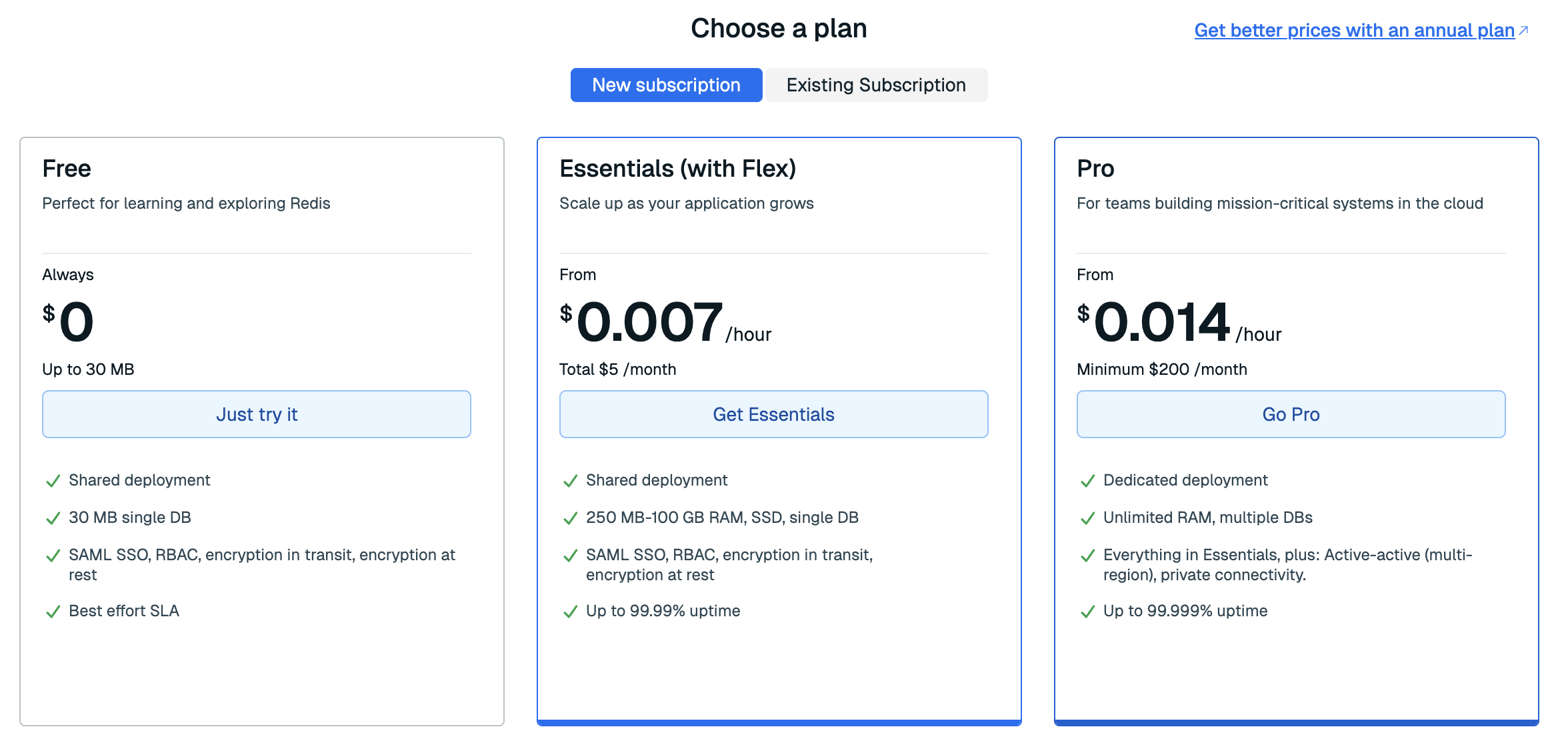
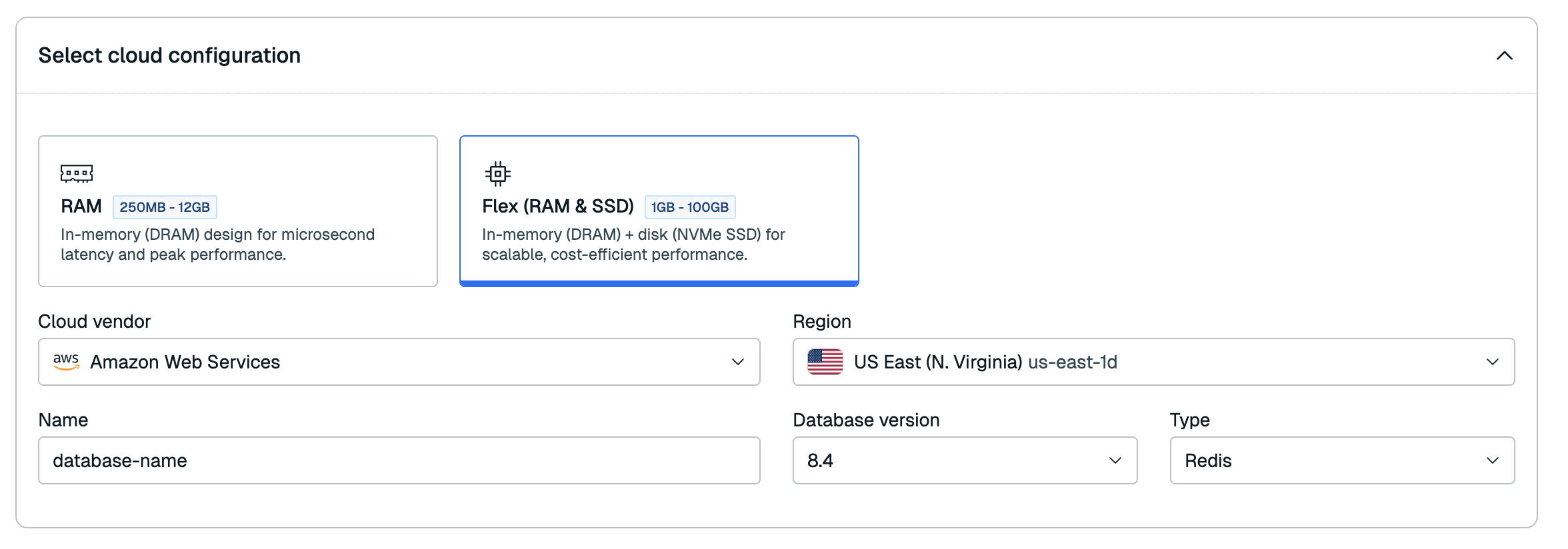
After you select Essentials, the rest of the database details will appear. Select Flex (RAM + SSD) to use Flex.
-
Redis will generate a database name for you. If you want to change it, you can do so in the Database name field.
-
Choose a Region on Amazon Web Services for your database. See Supported regions for a list of supported regions by cloud vendor.
-
Select the Database version you want to use.
-
Select your desired memory limit.
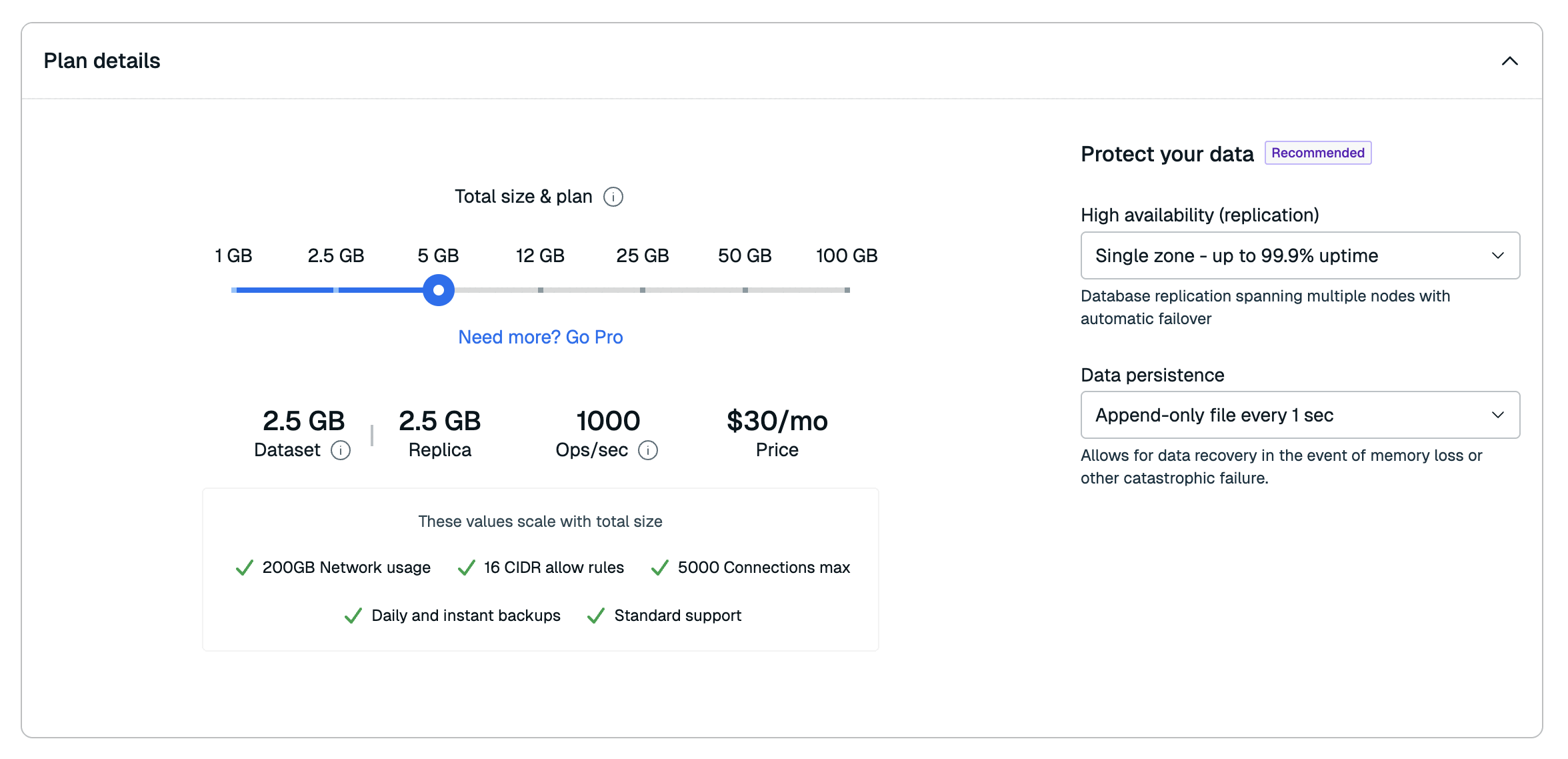
For a comparison of available plans, see Redis Cloud Essentials plans.
All Flex plans on Redis Cloud Essentials have a default RAM percentage of 10%.
-
Choose your High availability (replication) settings from the list.
Redis Cloud supports the following high availability settings with Flex:
- None: You will have a single copy of your database without replication.
- Single-Zone: Your database will have a primary and a replica located in the same cloud zone. If anything happens to the primary, the replica takes over and becomes the new primary.
See High availability for more information about these settings.
-
Choose your Data persistence settings from the list.
Redis Cloud supports the following data persistence options:
-
An Append-Only File maintains a record (sometimes called a redo log or journal) of write operations. This allows the data to be restored by using the record to reconstruct the database up to the point of failure. For Essentials databases, Redis updates the Append-Only file every second.
-
A Snapshot is a copy of the in-memory database, taken at periodic intervals (one, six, or twelve hours). You can restore data to the snapshot's point in time.
See Data persistence for more information about these settings.
-
-
Select the Database version you want to use.
-
Enter your payment details.
If you haven't previously entered a payment method, use the Add Credit Card button to add one.

If you have not already added a business address to your account, you must enter one. Redis uses your business address for communication, invoicing, and tax purposes.
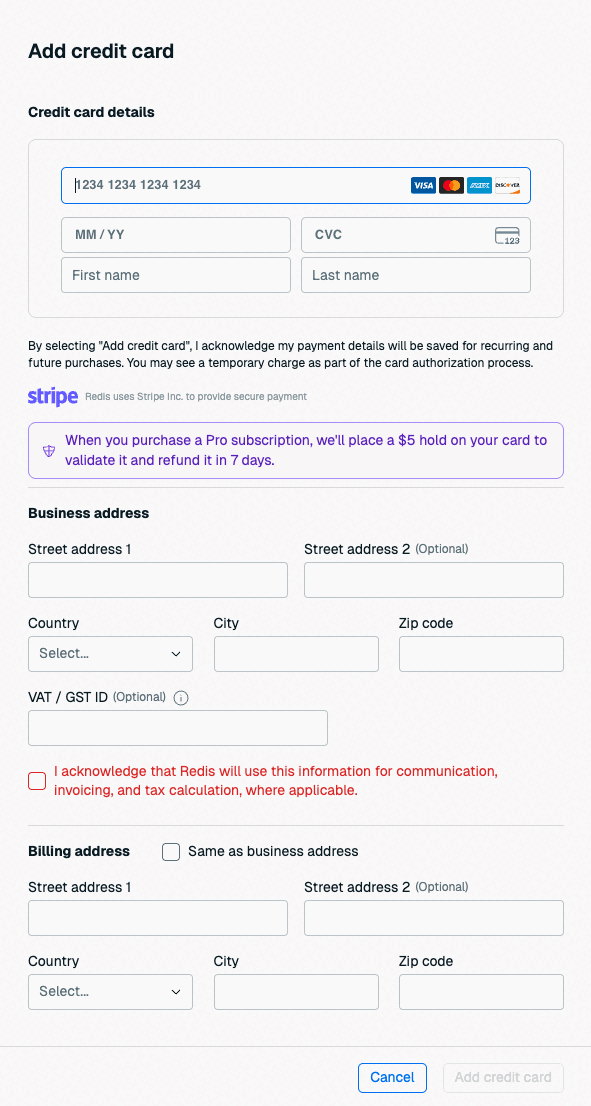
If you already have a business address, you don't need to enter one here. See Account settings to learn how to update your business address.
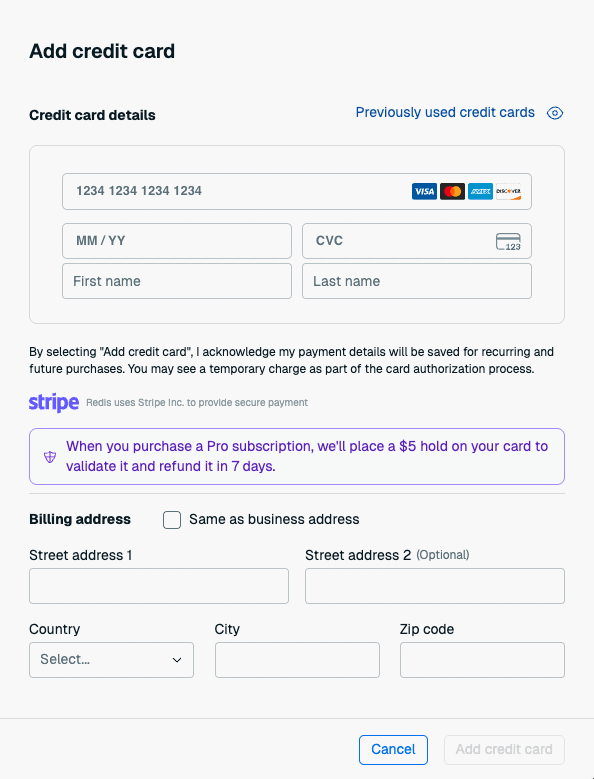
If the card's billing address is the same as your account's business address, select Same as business address to fill the billing address with your business address details.
-
Select Confirm & pay to create your database.

When you create your database, there's a brief pause while your request is processed and then the Database details page appears.
Redis Cloud Pro
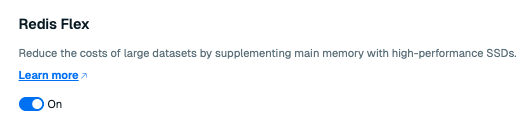
To create a Flex database on Redis Cloud Pro, create a new Pro database with custom settings.
In the Advanced options of the Setup tab, select Redis Flex.
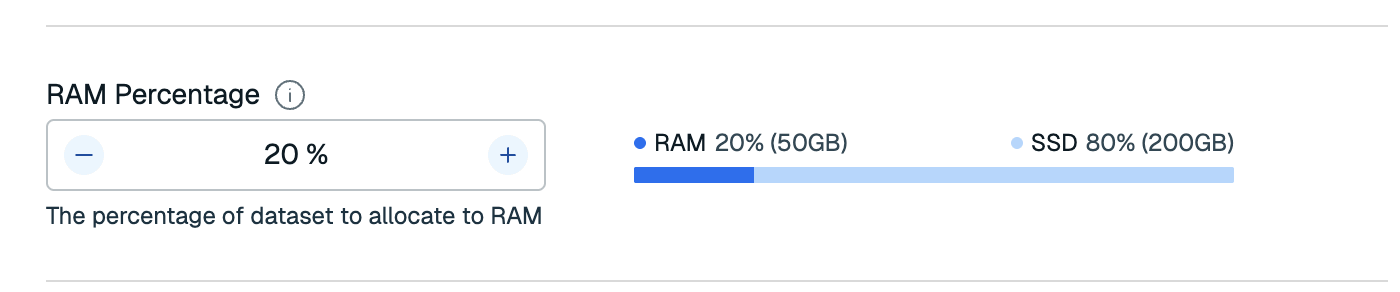
During the Sizing step, when you are provisioning your databases, you can select the RAM percentage for your database. The default is 20%, but you can select a percentage between 10% and 50%. Lower RAM percentages reduce cost but may increase latency, while higher RAM percentages improve throughput and latency at higher cost.
Continue with the instructions to create your database.